Custom input device
The Incar Skill System provides some inputs out of the box: XR devices, Spacemouse, Gamepads, and Keyboard. However, in case you need a custom input device, such as for a puppeteering setup, it is possible to create an extension for a custom input device.
source ~/incar/bin/activate
incar create_pkg --name [package_name] --input [path]
Ensure that the package name is unique to avoid conflicts with other extensions. path is the location where the extension will be created.
Creating the Input Device
Success
prior to starting, ensure that you are able to connect to and read the input device using a hello world example from the device supplier.
After creating the package, open the template file and fill in the missing functions:
| [package_name]_input/inputs.py | |
|---|---|
1 2 3 4 5 6 7 8 9 10 11 12 13 14 15 16 17 18 19 | |
Using the custom input device
Ensure that your extension is installed to the incar venv using pip install -e . in the extension root folder. (-e ensures you can hot-reload the extension). Restart the Incar Skill System if it was still running.
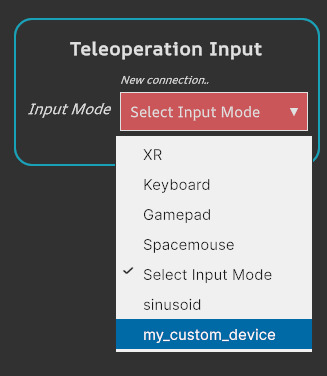
You can now select the extension from the Teleoperation Input dropdown.